> ## Documentation Index
> Fetch the complete documentation index at: https://docs.insforge.dev/llms.txt
> Use this file to discover all available pages before exploring further.
# MCP setup
> Wire your editor's MCP client to InsForge.
## Overview
The InsForge MCP server gives your AI coding assistant direct access to your backend: database queries, schema management, storage, and more.
Follow the instructions below for your AI client. Don't see your tool? Browse the [agent directory](https://insforge.dev/agents) for the full list of tested integrations.
## Prerequisites
* An **AI coding assistant** (Cursor, Claude Code, GitHub Copilot, etc.)
* An **InsForge project** - [create one here](https://insforge.dev) if you haven't already
## Local MCP Configuration (Recommended)
If you prefer to configure MCP locally, select your AI coding assistant below:
### Installation
You can one-click install the MCP server in Cursor by clicking the "Add to Cursor" button in the screenshot below:
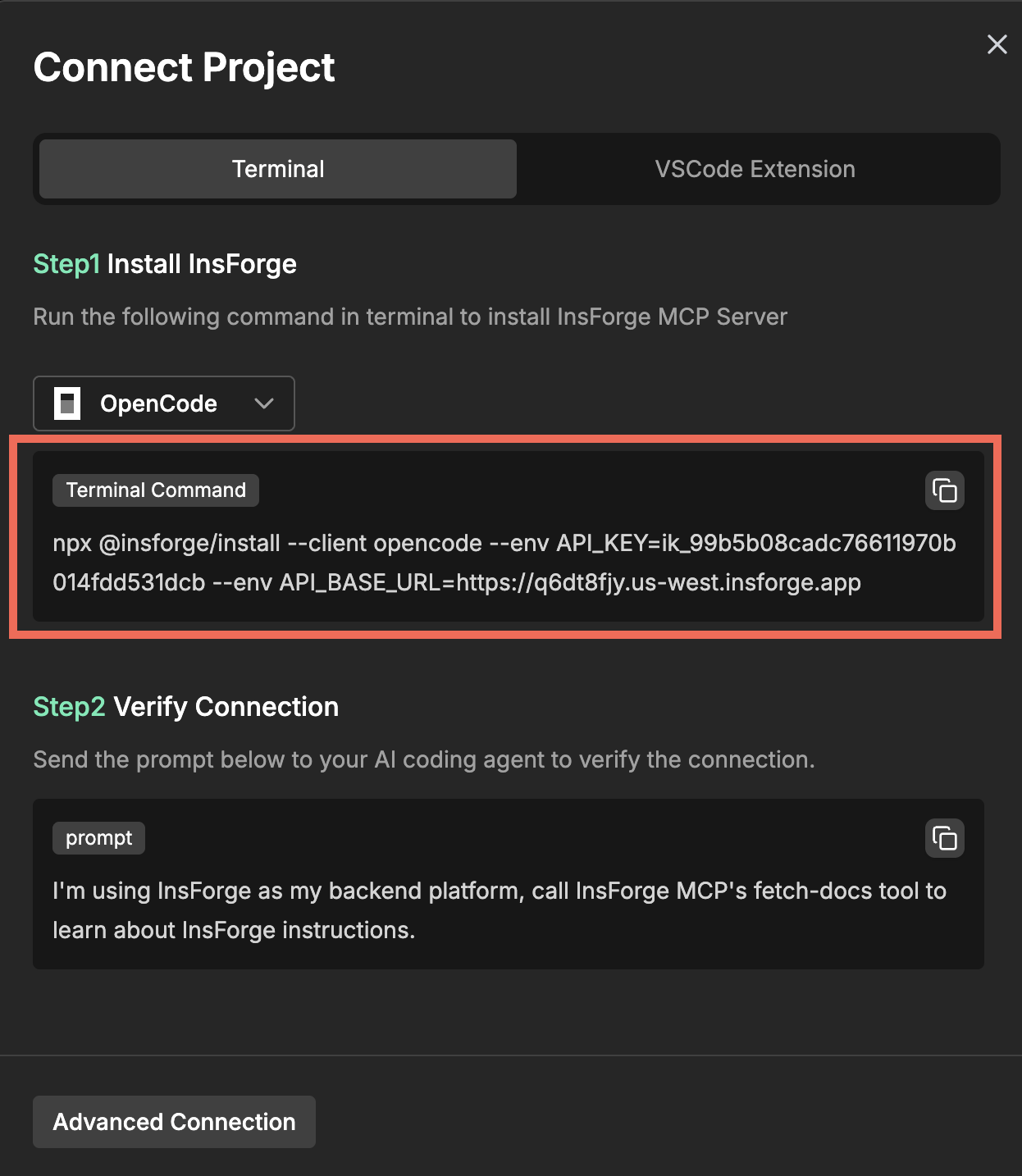 Alternatively, you can install the InsForge MCP server manually:
1. Open **Cursor Settings**
2. Go to **Tools & MCP**
3. Click **New MCP Server (Add a Custom MCP Server)**
4. Paste the MCP JSON from your InsForge project
5. Save the configuration file
6. You should see a green dot, indicating InsForge is installed successfully
### Verify Installation
To verify the connection, start a new chat session in **Cursor** and send this prompt to your agent:
```
I'm using InsForge as my backend platform, call InsForge MCP's fetch-docs tool to
learn about InsForge instructions.
```
If the connection is successful, you will see the **Connected** status indicator on your InsForge dashboard (top right corner).
### Installation
Add the InsForge MCP server to your **Claude Code**:
1. Select **Claude Code** in the dropdown list
2. Copy and paste the following installation command in your terminal
Alternatively, you can install the InsForge MCP server manually:
1. Open **Cursor Settings**
2. Go to **Tools & MCP**
3. Click **New MCP Server (Add a Custom MCP Server)**
4. Paste the MCP JSON from your InsForge project
5. Save the configuration file
6. You should see a green dot, indicating InsForge is installed successfully
### Verify Installation
To verify the connection, start a new chat session in **Cursor** and send this prompt to your agent:
```
I'm using InsForge as my backend platform, call InsForge MCP's fetch-docs tool to
learn about InsForge instructions.
```
If the connection is successful, you will see the **Connected** status indicator on your InsForge dashboard (top right corner).
### Installation
Add the InsForge MCP server to your **Claude Code**:
1. Select **Claude Code** in the dropdown list
2. Copy and paste the following installation command in your terminal
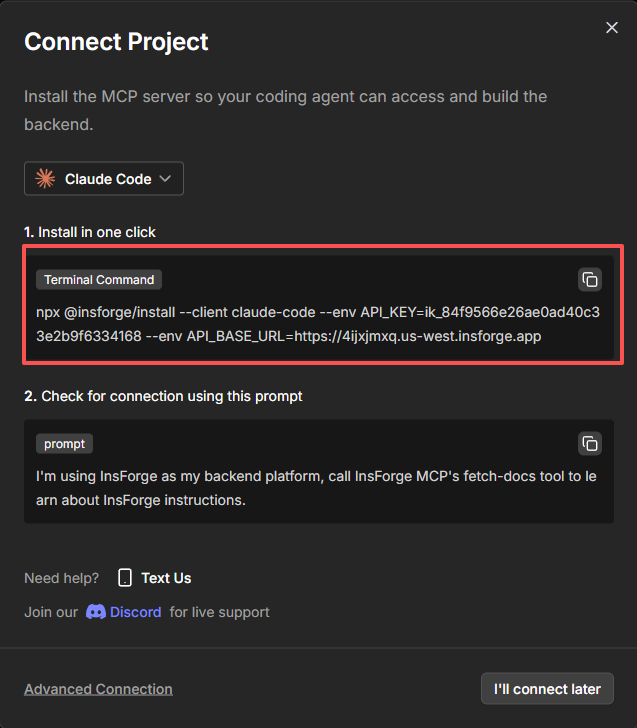 3. Run the command
### Verify Installation
To verify the connection, start a new chat session in **Claude Code** and send this prompt to your agent:
```
I'm using InsForge as my backend platform, call InsForge MCP's fetch-docs tool to
learn about InsForge instructions.
```
If the connection is successful, you will see the **MCP Connected** status indicator on your InsForge dashboard (top right corner).
### Installation
Add the InsForge MCP server to your **GitHub Copilot**:
1. Select **Copilot** in the dropdown list
2. Open the terminal and paste the following installation command in your **GitHub Copilot** terminal
3. Run the command
### Verify Installation
To verify the connection, start a new chat session in **Claude Code** and send this prompt to your agent:
```
I'm using InsForge as my backend platform, call InsForge MCP's fetch-docs tool to
learn about InsForge instructions.
```
If the connection is successful, you will see the **MCP Connected** status indicator on your InsForge dashboard (top right corner).
### Installation
Add the InsForge MCP server to your **GitHub Copilot**:
1. Select **Copilot** in the dropdown list
2. Open the terminal and paste the following installation command in your **GitHub Copilot** terminal
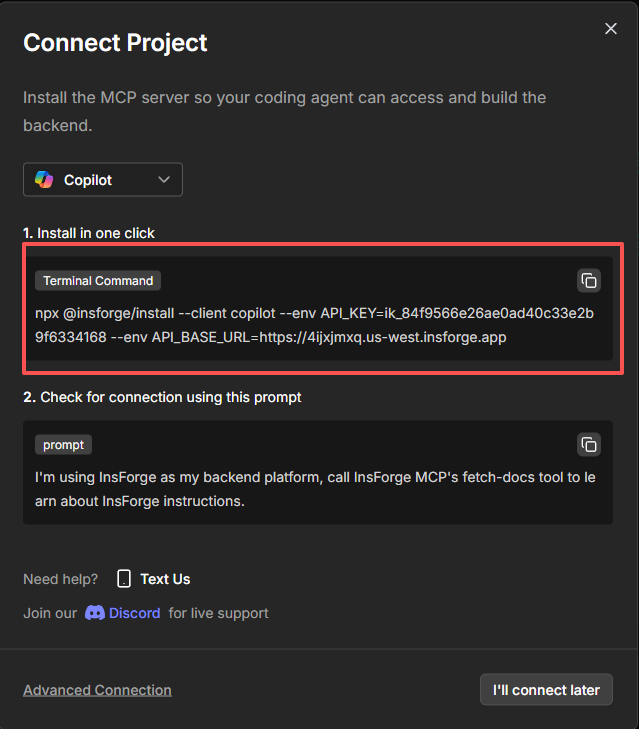 3. Run the command
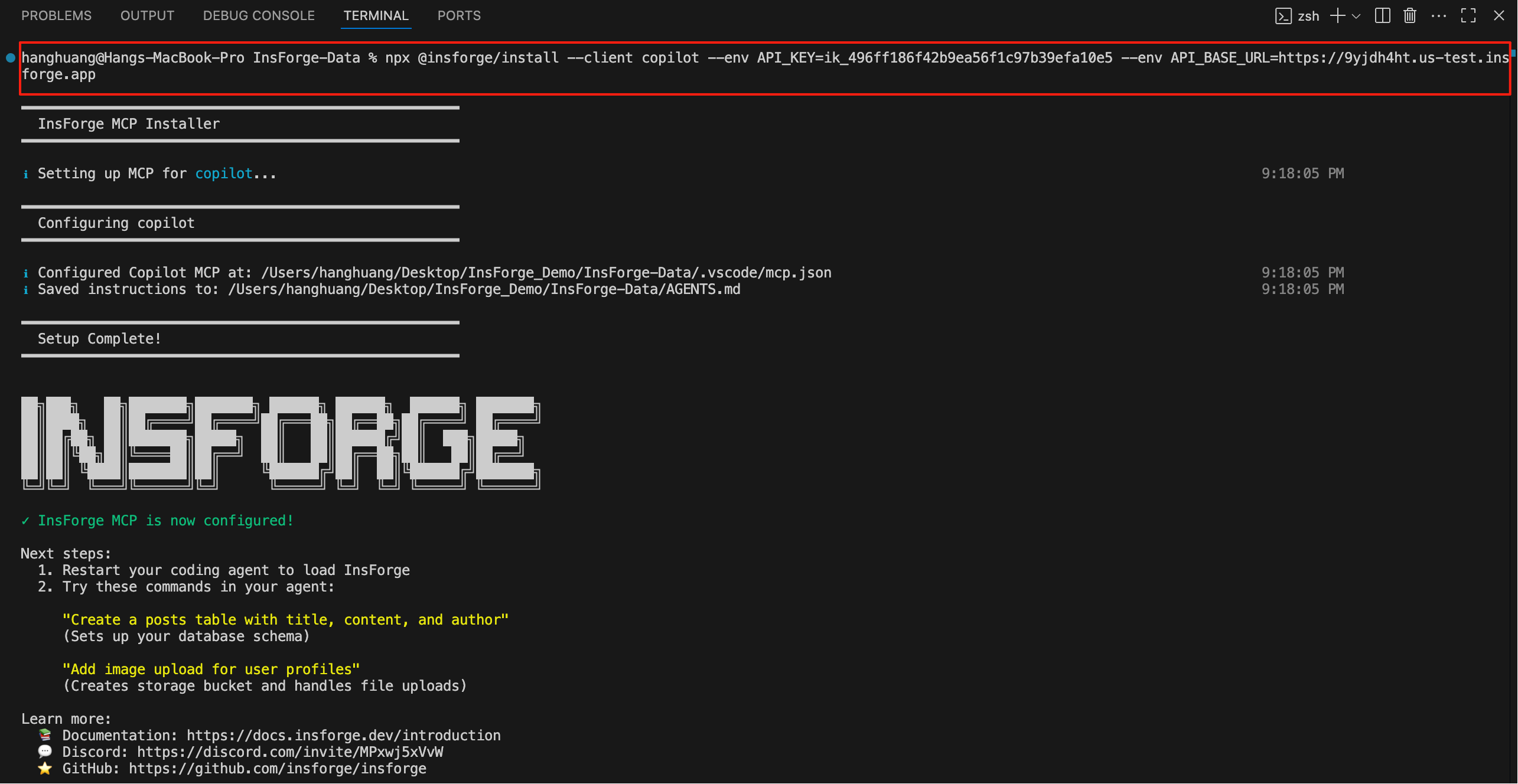 ### Verify Installation
To verify the connection, start a new chat session in **Copilot** and send this prompt to your agent:
```
I'm using InsForge as my backend platform, call InsForge MCP's fetch-docs tool to
learn about InsForge instructions.
```
If the connection is successful, you will see the **MCP Connected** status indicator on your InsForge dashboard (top right corner).
### Verify Installation
To verify the connection, start a new chat session in **Copilot** and send this prompt to your agent:
```
I'm using InsForge as my backend platform, call InsForge MCP's fetch-docs tool to
learn about InsForge instructions.
```
If the connection is successful, you will see the **MCP Connected** status indicator on your InsForge dashboard (top right corner).
 ### Installation
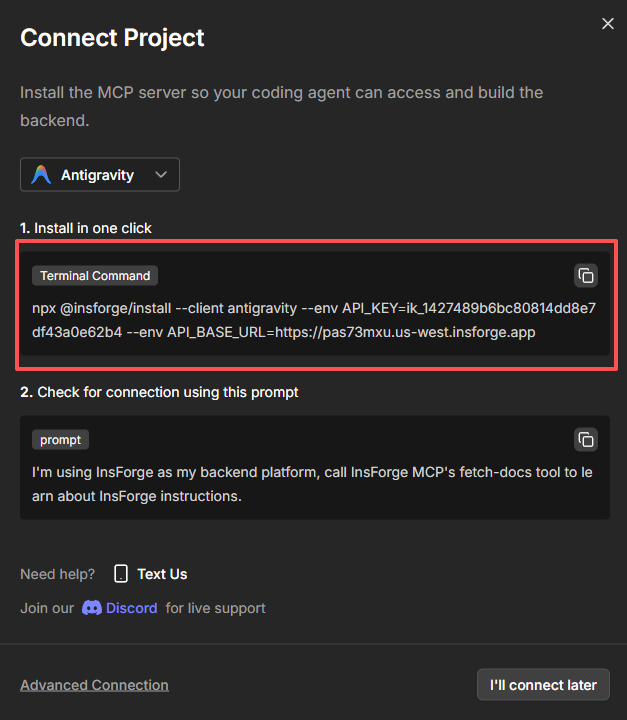
Add the InsForge MCP server to your **Antigravity**:
1. Select **Antigravity** in the dropdown list
2. Copy and paste the following installation command in your **Antigravity** terminal
### Installation
Add the InsForge MCP server to your **Antigravity**:
1. Select **Antigravity** in the dropdown list
2. Copy and paste the following installation command in your **Antigravity** terminal
 3. Run the command
### Verify Installation
To verify the connection, start a new chat session in **Antigravity** and send this prompt to your agent:
```
I'm using InsForge as my backend platform, call InsForge MCP's fetch-docs tool to
learn about InsForge instructions.
```
If the connection is successful, you will see the **MCP Connected** status indicator on your InsForge dashboard (top right corner).
### Installation
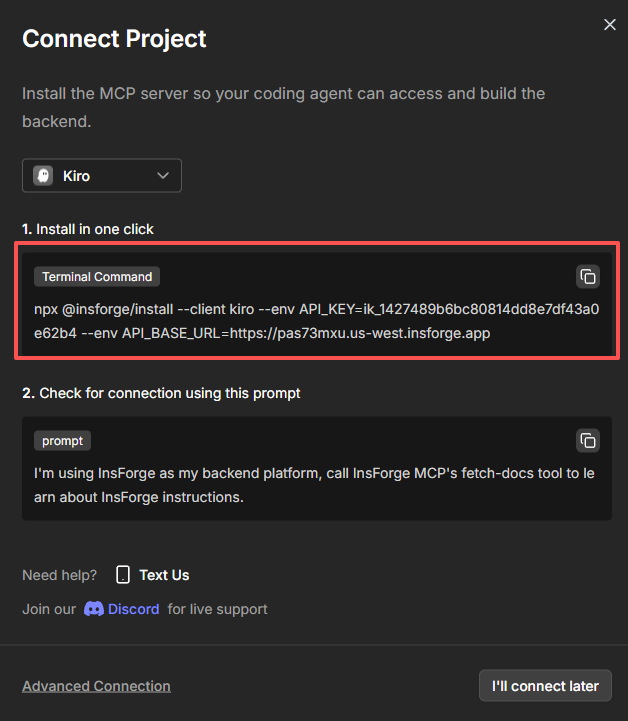
Add the InsForge MCP server to your **Kiro**:
1. Select **Kiro** in the dropdown list
2. Copy and paste the following installation command in your **Kiro** terminal
3. Run the command
### Verify Installation
To verify the connection, start a new chat session in **Antigravity** and send this prompt to your agent:
```
I'm using InsForge as my backend platform, call InsForge MCP's fetch-docs tool to
learn about InsForge instructions.
```
If the connection is successful, you will see the **MCP Connected** status indicator on your InsForge dashboard (top right corner).
### Installation
Add the InsForge MCP server to your **Kiro**:
1. Select **Kiro** in the dropdown list
2. Copy and paste the following installation command in your **Kiro** terminal
 3. Run the command
### Verify Installation
To verify the connection, start a new chat session in **Kiro** and send this prompt to your agent:
```
I'm using InsForge as my backend platform, call InsForge MCP's fetch-docs tool to
learn about InsForge instructions.
```
If the connection is successful, you will see the **MCP Connected** status indicator on your InsForge dashboard (top right corner).
### Installation
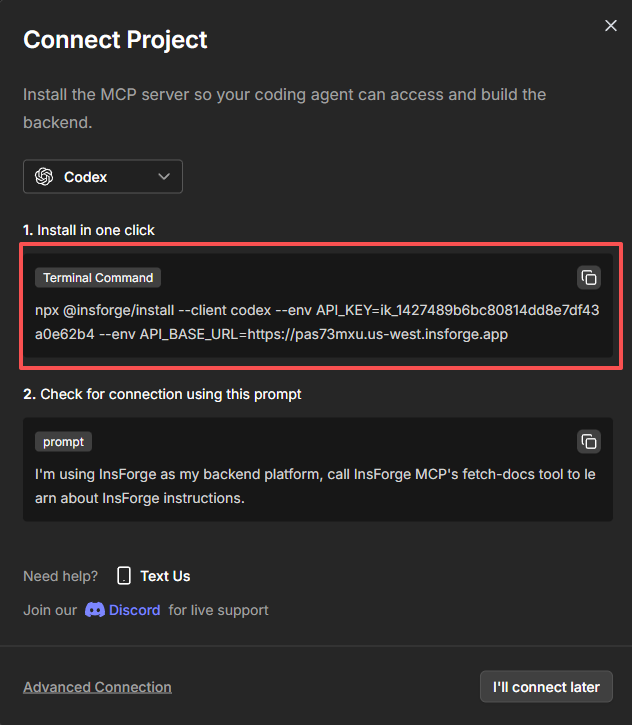
Add the InsForge MCP server to your **Codex**:
1. Select **Codex** in the dropdown list
2. Copy and paste the following installation command in your terminal
3. Run the command
### Verify Installation
To verify the connection, start a new chat session in **Kiro** and send this prompt to your agent:
```
I'm using InsForge as my backend platform, call InsForge MCP's fetch-docs tool to
learn about InsForge instructions.
```
If the connection is successful, you will see the **MCP Connected** status indicator on your InsForge dashboard (top right corner).
### Installation
Add the InsForge MCP server to your **Codex**:
1. Select **Codex** in the dropdown list
2. Copy and paste the following installation command in your terminal
 3. Run the command
### Verify Installation
To verify the connection, start a new chat session in **Codex** and send this prompt to your agent:
```
I'm using InsForge as my backend platform, call InsForge MCP's fetch-docs tool to
learn about InsForge instructions.
```
If the connection is successful, you will see the **MCP Connected** status indicator on your InsForge dashboard (top right corner).
### Installation
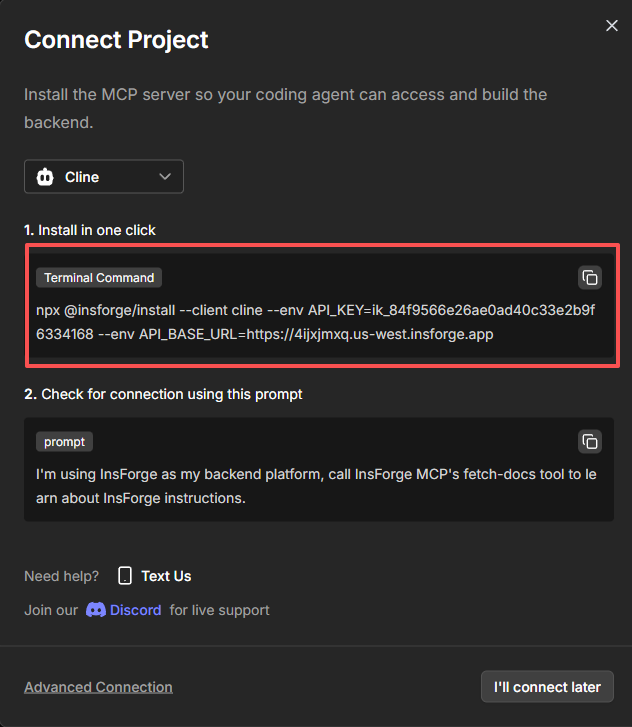
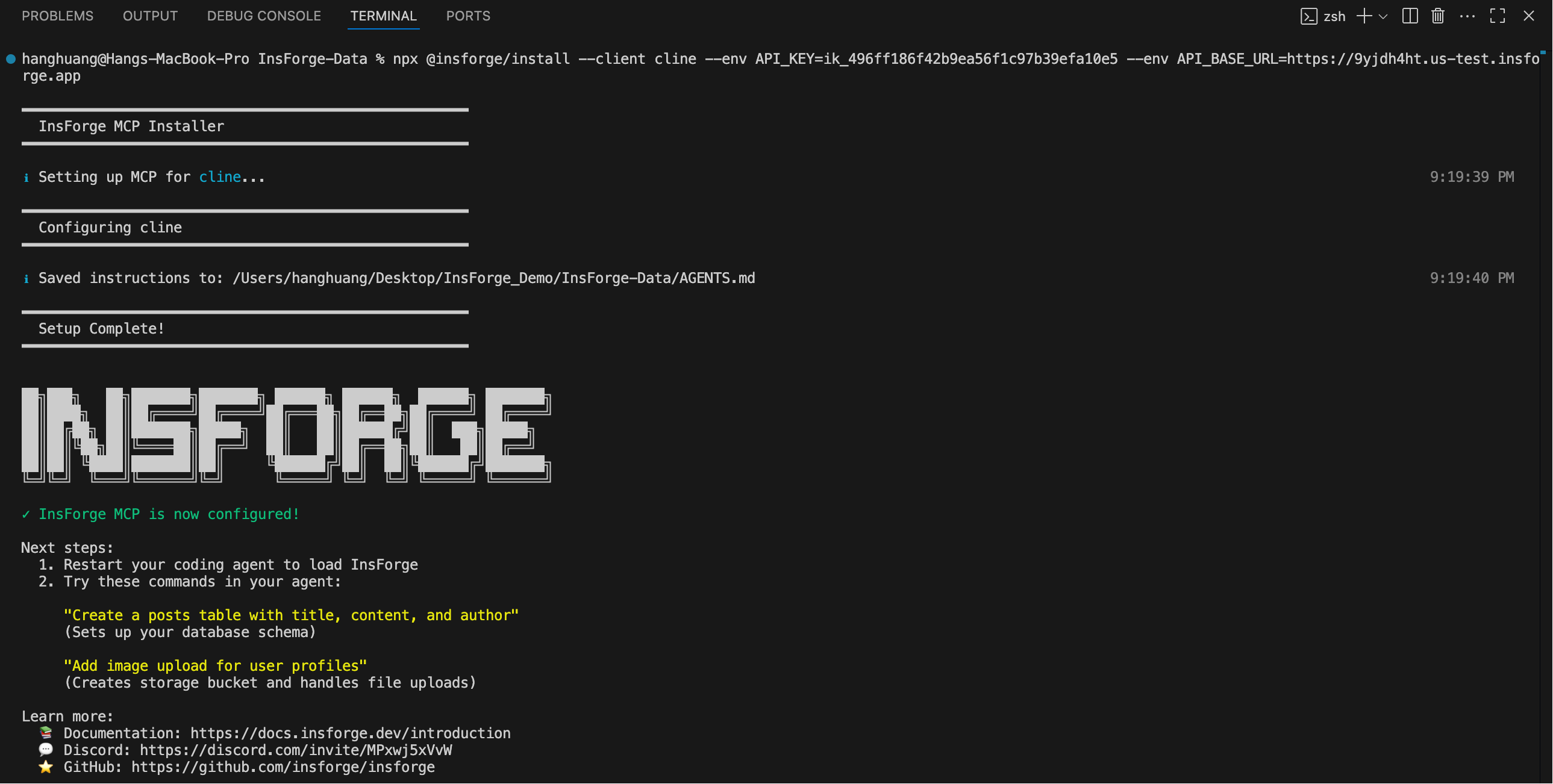
Add the InsForge MCP server to your **Cline**:
1. Select **Cline** in the dropdown list
2. Copy and paste the following installation command in your **Cline** terminal
3. Run the command
### Verify Installation
To verify the connection, start a new chat session in **Codex** and send this prompt to your agent:
```
I'm using InsForge as my backend platform, call InsForge MCP's fetch-docs tool to
learn about InsForge instructions.
```
If the connection is successful, you will see the **MCP Connected** status indicator on your InsForge dashboard (top right corner).
### Installation
Add the InsForge MCP server to your **Cline**:
1. Select **Cline** in the dropdown list
2. Copy and paste the following installation command in your **Cline** terminal
 3. Run the command
 ### Verify Installation
To verify the connection, start a new chat session in **Cline** and send this prompt to your agent:
```
I'm using InsForge as my backend platform, call InsForge MCP's fetch-docs tool to
learn about InsForge instructions.
```
If the connection is successful, you will see the **MCP Connected** status indicator on your InsForge dashboard (top right corner).
### Installation
Add the InsForge MCP server to your **Windsurf**:
1. Select **Windsurf** in the dropdown list
2. Copy and paste the following installation command in your Windsurf terminal
### Verify Installation
To verify the connection, start a new chat session in **Cline** and send this prompt to your agent:
```
I'm using InsForge as my backend platform, call InsForge MCP's fetch-docs tool to
learn about InsForge instructions.
```
If the connection is successful, you will see the **MCP Connected** status indicator on your InsForge dashboard (top right corner).
### Installation
Add the InsForge MCP server to your **Windsurf**:
1. Select **Windsurf** in the dropdown list
2. Copy and paste the following installation command in your Windsurf terminal
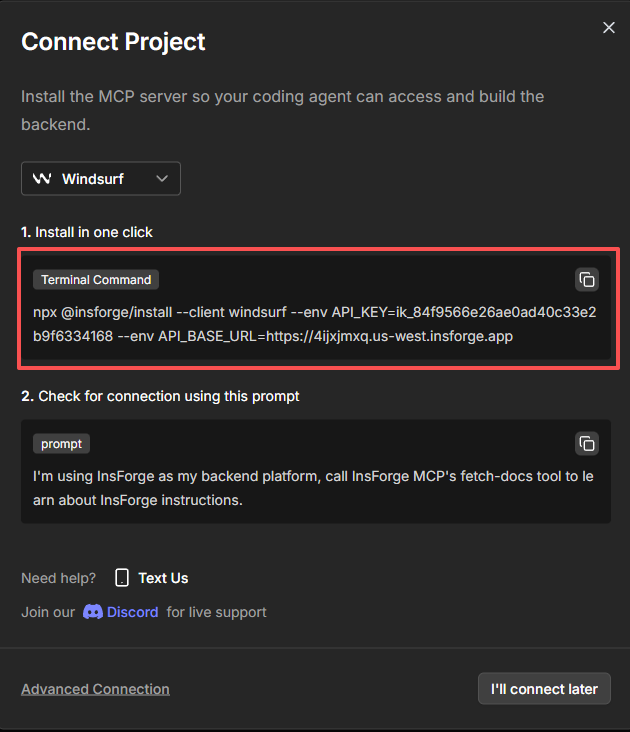 3. Run the command
### Verify Installation
To verify the connection, start a new chat session in **Windsurf** and send this prompt to your agent:
```
I'm using InsForge as my backend platform, call InsForge MCP's fetch-docs tool to
learn about InsForge instructions.
```
If the connection is successful, you will see the **MCP Connected** status indicator on your InsForge dashboard (top right corner).
### Installation
Add the InsForge MCP server to your **Trae**:
1. Select **Trae** in the dropdown list
2. Copy and paste the following installation command in your **Trae** terminal
3. Run the command
### Verify Installation
To verify the connection, start a new chat session in **Windsurf** and send this prompt to your agent:
```
I'm using InsForge as my backend platform, call InsForge MCP's fetch-docs tool to
learn about InsForge instructions.
```
If the connection is successful, you will see the **MCP Connected** status indicator on your InsForge dashboard (top right corner).
### Installation
Add the InsForge MCP server to your **Trae**:
1. Select **Trae** in the dropdown list
2. Copy and paste the following installation command in your **Trae** terminal
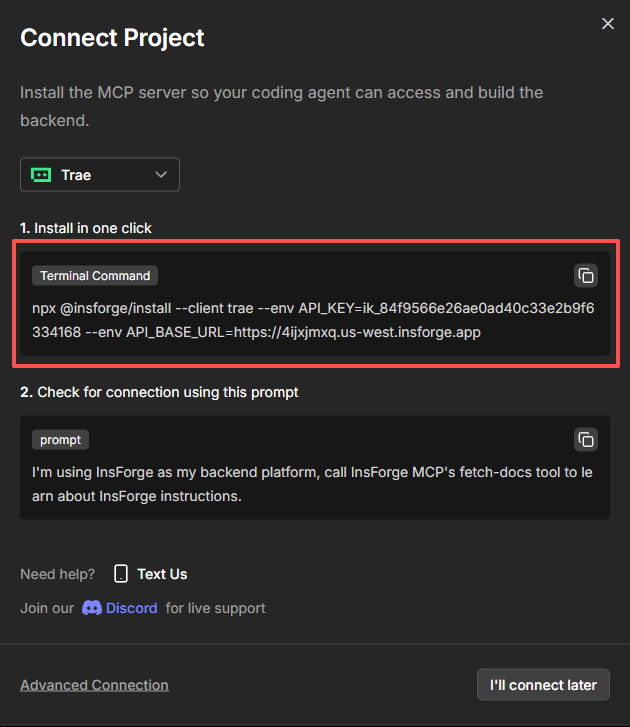 3. Run the command
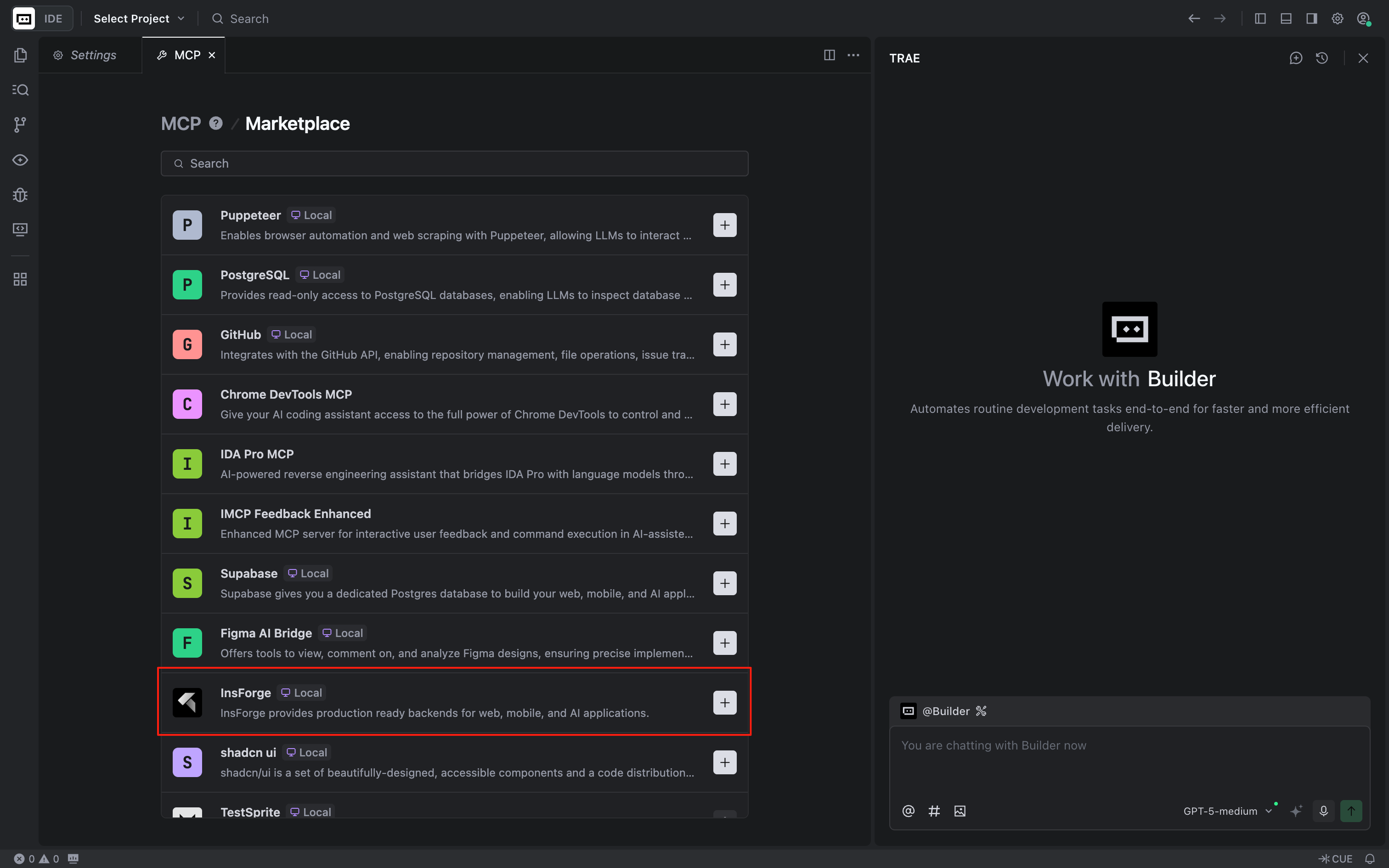
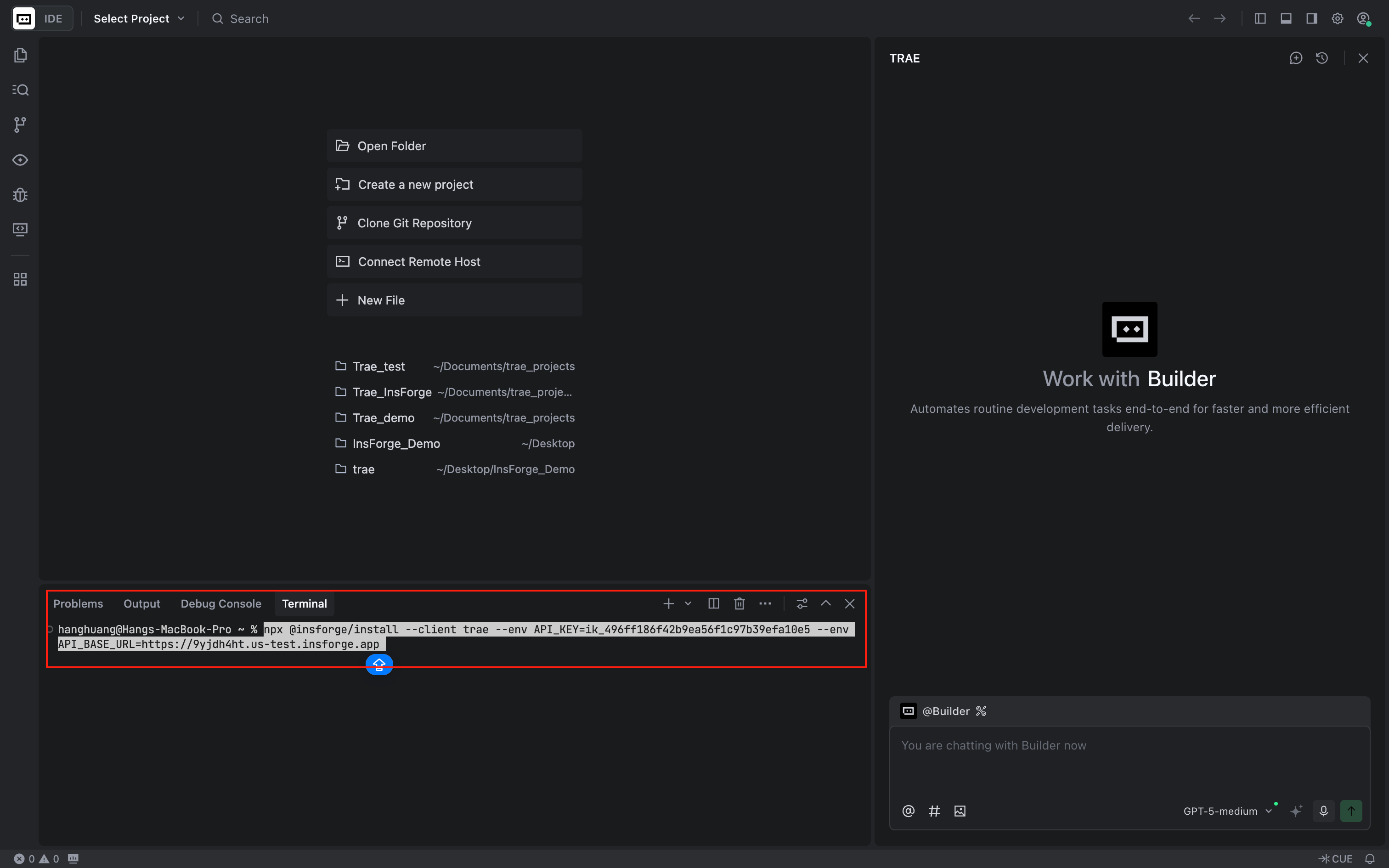 Alternatively, Trae offers a first-party integration with InsForge, allowing you to install InsForge directly from Trae's official MCP marketplace:
1. Open Trae's **Settings** → navigate to **MCP**
2. Click on **Add** and then select **Add from Marketplace**
3. Search "InsForge" and add it from the marketplace
Alternatively, Trae offers a first-party integration with InsForge, allowing you to install InsForge directly from Trae's official MCP marketplace:
1. Open Trae's **Settings** → navigate to **MCP**
2. Click on **Add** and then select **Add from Marketplace**
3. Search "InsForge" and add it from the marketplace
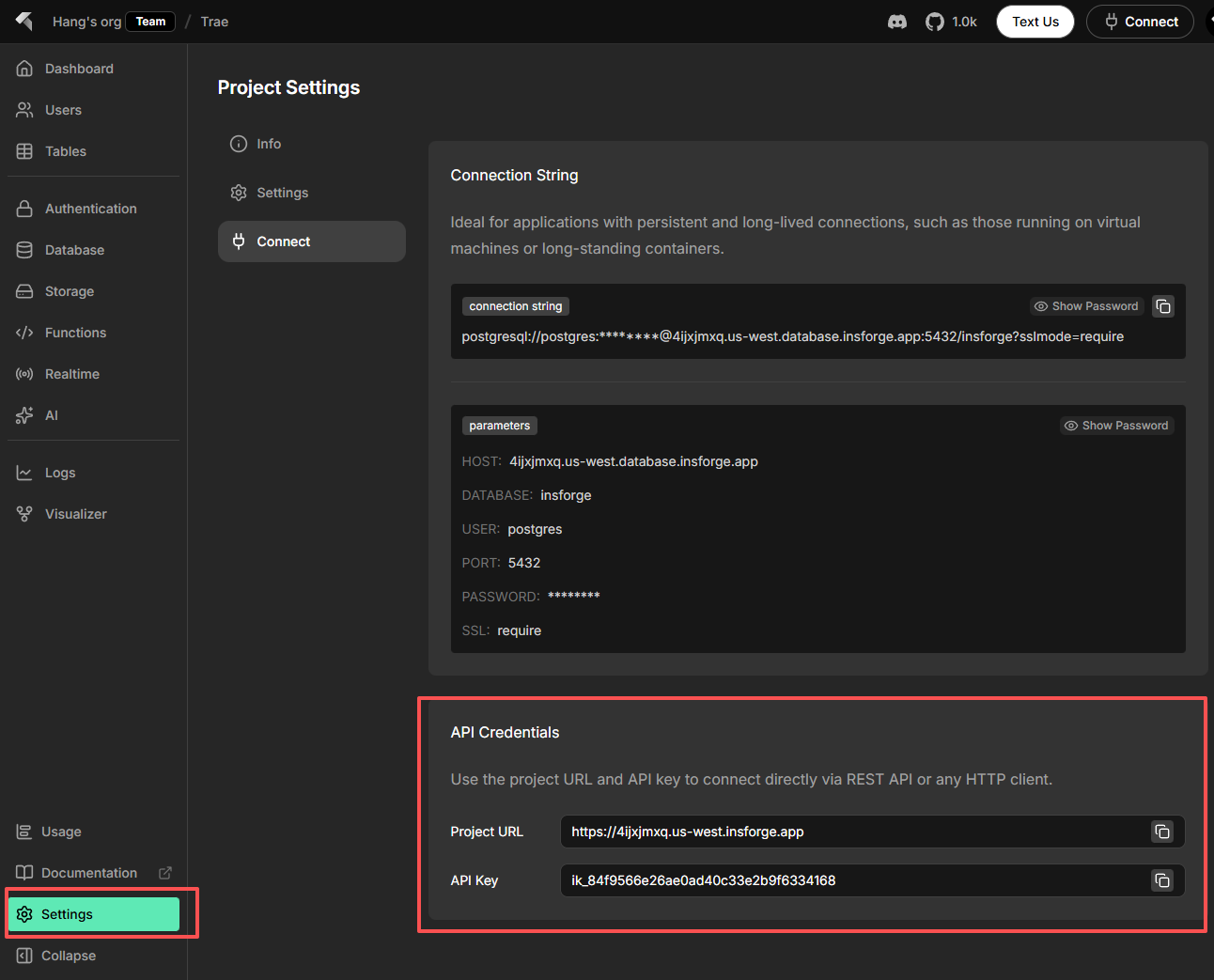
 4. For required credentials API\_KEY and API\_BASE\_URL, you can find it in your InsForge's **Settings**, under the **Connect** tab
 ### Verify Installation
To verify the connection, start a new chat in **Trae** and send this prompt to your agent:
```
I'm using InsForge as my backend platform, call InsForge MCP's fetch-docs tool to
learn about InsForge instructions.
```
If the connection is successful, you will see the **MCP Connected** status indicator on your InsForge dashboard (top right corner).
### Installation
Add the InsForge MCP server to your **Qoder**:
1. Select **Qoder** in the dropdown list
2. Copy and paste the following installation command in your **Qoder** terminal
### Verify Installation
To verify the connection, start a new chat in **Trae** and send this prompt to your agent:
```
I'm using InsForge as my backend platform, call InsForge MCP's fetch-docs tool to
learn about InsForge instructions.
```
If the connection is successful, you will see the **MCP Connected** status indicator on your InsForge dashboard (top right corner).
### Installation
Add the InsForge MCP server to your **Qoder**:
1. Select **Qoder** in the dropdown list
2. Copy and paste the following installation command in your **Qoder** terminal
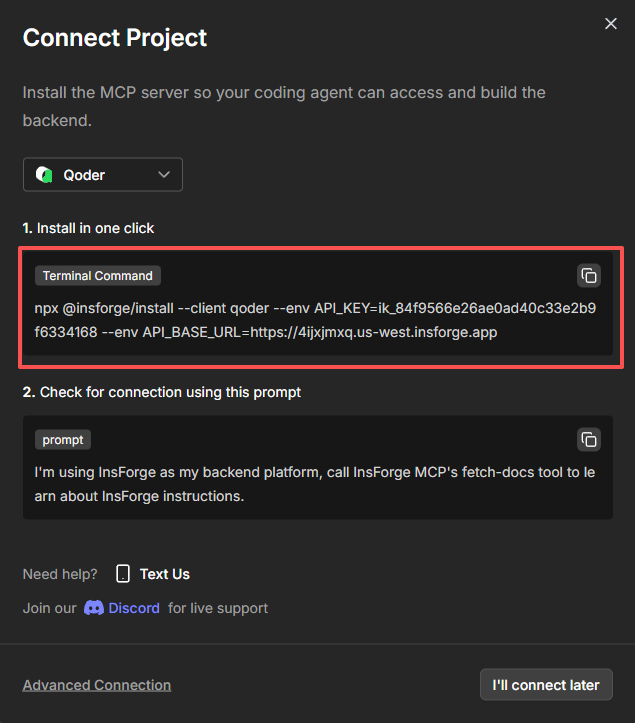 3. Run the command
### Verify Installation
To verify the connection, start a new chat session in **Qoder** and send this prompt to your agent:
```
I'm using InsForge as my backend platform, call InsForge MCP's fetch-docs tool to
learn about InsForge instructions.
```
If the connection is successful, you will see the **MCP Connected** status indicator on your InsForge dashboard (top right corner).
### Installation
Add the InsForge MCP server to your **Roo Code**:
1. Select **Roo Code** in the dropdown list
2. Copy and paste the following installation command in your **Roo Code** terminal
3. Run the command
### Verify Installation
To verify the connection, start a new chat session in **Qoder** and send this prompt to your agent:
```
I'm using InsForge as my backend platform, call InsForge MCP's fetch-docs tool to
learn about InsForge instructions.
```
If the connection is successful, you will see the **MCP Connected** status indicator on your InsForge dashboard (top right corner).
### Installation
Add the InsForge MCP server to your **Roo Code**:
1. Select **Roo Code** in the dropdown list
2. Copy and paste the following installation command in your **Roo Code** terminal
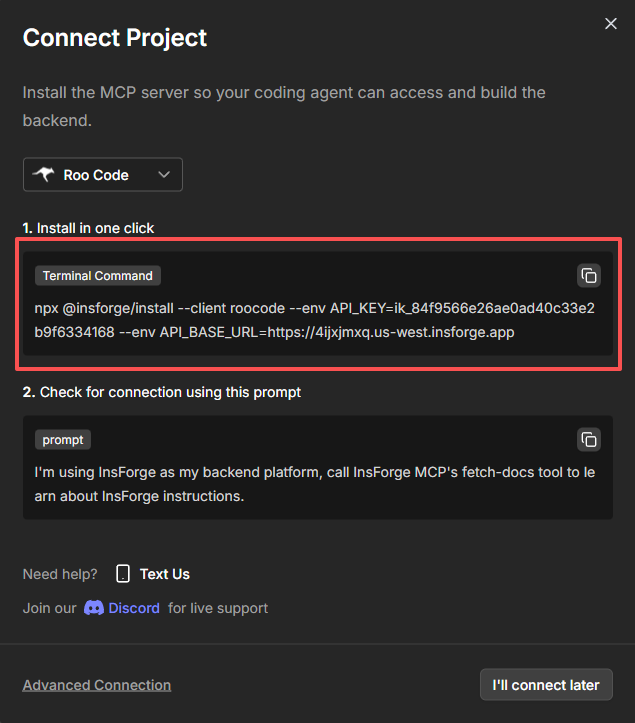 3. Run the command
### Verify Installation
To verify the connection, start a new chat session in **Roo Code** and send this prompt to your agent:
```
I'm using InsForge as my backend platform, call InsForge MCP's fetch-docs tool to
learn about InsForge instructions.
```
If the connection is successful, you will see the **MCP Connected** status indicator on your InsForge dashboard (top right corner).
### Installation
Add the InsForge MCP server to your **OpenCode**:
1. Select **OpenCode** in the dropdown list
2. Copy and paste the following installation command in your terminal
3. Run the command
### Verify Installation
To verify the connection, start a new chat session in **OpenCode** and send this prompt to your agent:
```
I'm using InsForge as my backend platform, call InsForge MCP's fetch-docs tool to
learn about InsForge instructions.
```
If the connection is successful, you will see the **MCP Connected** status indicator on your InsForge dashboard (top right corner).
### Installation
Add the InsForge MCP server to your coding agent with MCP JSON:
1. Select **MCP JSON** in the dropdown list
2. Copy and paste the following **MCP JSON** configuration in your agent
3. Run the command
### Verify Installation
To verify the connection, start a new chat session in **Roo Code** and send this prompt to your agent:
```
I'm using InsForge as my backend platform, call InsForge MCP's fetch-docs tool to
learn about InsForge instructions.
```
If the connection is successful, you will see the **MCP Connected** status indicator on your InsForge dashboard (top right corner).
### Installation
Add the InsForge MCP server to your **OpenCode**:
1. Select **OpenCode** in the dropdown list
2. Copy and paste the following installation command in your terminal
3. Run the command
### Verify Installation
To verify the connection, start a new chat session in **OpenCode** and send this prompt to your agent:
```
I'm using InsForge as my backend platform, call InsForge MCP's fetch-docs tool to
learn about InsForge instructions.
```
If the connection is successful, you will see the **MCP Connected** status indicator on your InsForge dashboard (top right corner).
### Installation
Add the InsForge MCP server to your coding agent with MCP JSON:
1. Select **MCP JSON** in the dropdown list
2. Copy and paste the following **MCP JSON** configuration in your agent
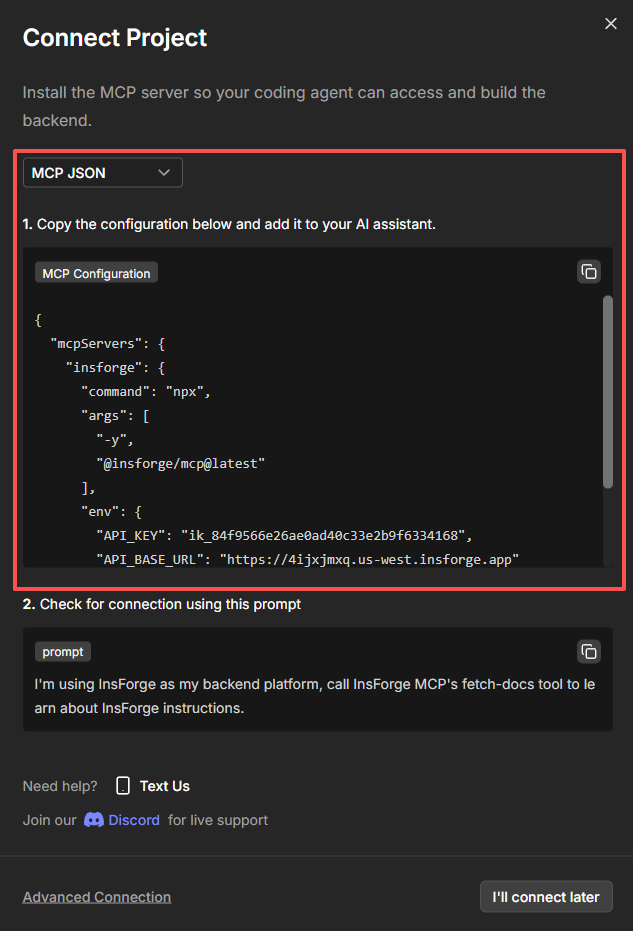 ### Verify Installation
To verify the connection, start a new chat session and send this prompt to your agent:
```
I'm using InsForge as my backend platform, call InsForge MCP's fetch-docs tool to
learn about InsForge instructions.
```
If the connection is successful, you will see the **MCP Connected** status indicator on your InsForge dashboard (top right corner).
## Remote MCP
The fastest way to get started is with Remote MCP. A single command attempts installation and will try to handle authentication and project binding, but it may still prompt you for manual authentication or project binding steps if the automatic flow cannot complete.
Run the following command in your terminal:
```bash theme={null}
npx add-mcp https://mcp.insforge.dev/mcp
```
The `add-mcp` command works for most coding agents, but not all. Currently it supports:
Claude Code, Claude Desktop, Codex, Cursor, Gemini CLI, Goose, GitHub Copilot, OpenCode, VS Code, Zed.
After running the command, the system will automatically generate a configuration file for your coding agent.
### Connect and Bind Project
Some MCP clients will automatically prompt you to login during setup, while others may require manual authentication or project binding steps if the automatic flow cannot complete. Either way, authentication will open a browser window where you can login to your InsForge account and grant organization/project access to the MCP client.
You can find the configuration file in `.cursor/mcp.json` as below:
```json theme={null}
{
"mcpServers": {
"insforge": {
"url": "https://mcp.insforge.dev/mcp"
}
}
}
```
In menu **Preferences → Cursor Settings → Tools & MCP**, you should see InsForge MCP server is added successfully.
InsForge MCP server is on the status of "Needs authentication", you can click the `connect` button to authenticate.
After installation, you will find the configuration file in `.mcp.json` as below:
```json theme={null}
{
"mcpServers": {
"insforge": {
"type": "http",
"url": "https://mcp.insforge.dev/mcp"
}
}
}
```
Then in a regular terminal (not the IDE extension) run:
```sh theme={null}
claude /mcp
```
Select the "insforge" server, then "Authenticate" to begin the authentication flow.
After installation, you will find the configuration file in `.vscode/mcp.json` as below:
```json theme={null}
{
"servers": {
"insforge": {
"type": "http",
"url": "https://mcp.insforge.dev/mcp"
}
}
}
```
Add this configuration to `~/.gemini/antigravity/mcp_config.json`:
```json theme={null}
{
"mcpServers": {
"insforge": {
"serverUrl": "https://mcp.insforge.dev/mcp"
}
}
}
```
Then restart Antigravity, it will auto authenticate.
After installation, you will find the configuration file in `.gemini/settings.json` as below:
```json theme={null}
{
"mcpServers": {
"insforge": {
"type": "http",
"url": "https://mcp.insforge.dev/mcp"
}
}
}
```
Start the Gemini CLI and run the following command to authenticate the server:
```sh theme={null}
/mcp auth insforge
```
If you are using Codex for the first time, you may need to enable the rmcp feature. To do so, add the following into your `~/.codex/config.toml` file:
```toml theme={null}
[beta]
rmcp = true
```
After installation, you will find the configuration file in `.codex/config.toml` as below:
```toml theme={null}
[mcp_servers.insforge]
type = "http"
url = "https://mcp.insforge.dev/mcp"
```
Then authenticate:
```sh theme={null}
codex mcp login insforge
```
Finally, run /mcp inside Codex to verify authentication.
Alternatively, you can run the following command to install the MCP server:
```sh theme={null}
codex mcp add insforge --url https://mcp.insforge.dev/mcp
```
You can install the InsForge MCP server to your **Cline** by running the following command in your terminal:
```bash theme={null}
npx -y @smithery/cli mcp add devel/insforge --client cline
```
Alternatively, you can follow the official [Cline documentation](https://docs.cline.bot/mcp/connecting-to-a-remote-server) to add the InsForge MCP server with parameters:
* Server Name: `insforge`
* Server URL: `https://mcp.insforge.dev/mcp`
* Transport Type: `Streamable HTTP`
After adding the server, you’ll see an error message asking to authenticate. Click the “Authenticate” button that appears to authenticate.
Add this configuration to `~/.codeium/windsurf/mcp_config.json`:
```json theme={null}
{
"mcpServers": {
"insforge": {
"command": "npx",
"args": [
"-y",
"mcp-remote",
"https://mcp.insforge.dev/mcp"
]
}
}
}
```
Windsurf does not currently support remote MCP servers over HTTP transport. You need to use the mcp-remote package as a proxy.
You can install the InsForge MCP server to your **Roo Code** by running the following command in your terminal:
```bash theme={null}
npx -y @smithery/cli mcp add devel/insforge --client roocode
```
After installation, you will find the configuration file in `./opencode.json` as below:
```json theme={null}
{
"mcp": {
"insforge": {
"type": "remote",
"url": "https://mcp.insforge.dev/mcp",
"enabled": true
}
}
}
```
Then run the following command to authenticate:
```sh theme={null}
opencode mcp auth insforge
```
This will open your browser to complete the OAuth authentication flow.
### Verify Installation
To verify the connection, start a new chat session in your AI coding assistant and send this prompt:
```
I'm using InsForge as my backend platform, call InsForge MCP's fetch-docs tool to
learn about InsForge instructions.
```
If the connection is successful, you will see the **MCP Connected** status indicator on your InsForge dashboard (top right corner).
## Troubleshooting
Most AI clients require a full restart after MCP config changes. Close and reopen the application.
### Verify Installation
To verify the connection, start a new chat session and send this prompt to your agent:
```
I'm using InsForge as my backend platform, call InsForge MCP's fetch-docs tool to
learn about InsForge instructions.
```
If the connection is successful, you will see the **MCP Connected** status indicator on your InsForge dashboard (top right corner).
## Remote MCP
The fastest way to get started is with Remote MCP. A single command attempts installation and will try to handle authentication and project binding, but it may still prompt you for manual authentication or project binding steps if the automatic flow cannot complete.
Run the following command in your terminal:
```bash theme={null}
npx add-mcp https://mcp.insforge.dev/mcp
```
The `add-mcp` command works for most coding agents, but not all. Currently it supports:
Claude Code, Claude Desktop, Codex, Cursor, Gemini CLI, Goose, GitHub Copilot, OpenCode, VS Code, Zed.
After running the command, the system will automatically generate a configuration file for your coding agent.
### Connect and Bind Project
Some MCP clients will automatically prompt you to login during setup, while others may require manual authentication or project binding steps if the automatic flow cannot complete. Either way, authentication will open a browser window where you can login to your InsForge account and grant organization/project access to the MCP client.
You can find the configuration file in `.cursor/mcp.json` as below:
```json theme={null}
{
"mcpServers": {
"insforge": {
"url": "https://mcp.insforge.dev/mcp"
}
}
}
```
In menu **Preferences → Cursor Settings → Tools & MCP**, you should see InsForge MCP server is added successfully.
InsForge MCP server is on the status of "Needs authentication", you can click the `connect` button to authenticate.
After installation, you will find the configuration file in `.mcp.json` as below:
```json theme={null}
{
"mcpServers": {
"insforge": {
"type": "http",
"url": "https://mcp.insforge.dev/mcp"
}
}
}
```
Then in a regular terminal (not the IDE extension) run:
```sh theme={null}
claude /mcp
```
Select the "insforge" server, then "Authenticate" to begin the authentication flow.
After installation, you will find the configuration file in `.vscode/mcp.json` as below:
```json theme={null}
{
"servers": {
"insforge": {
"type": "http",
"url": "https://mcp.insforge.dev/mcp"
}
}
}
```
Add this configuration to `~/.gemini/antigravity/mcp_config.json`:
```json theme={null}
{
"mcpServers": {
"insforge": {
"serverUrl": "https://mcp.insforge.dev/mcp"
}
}
}
```
Then restart Antigravity, it will auto authenticate.
After installation, you will find the configuration file in `.gemini/settings.json` as below:
```json theme={null}
{
"mcpServers": {
"insforge": {
"type": "http",
"url": "https://mcp.insforge.dev/mcp"
}
}
}
```
Start the Gemini CLI and run the following command to authenticate the server:
```sh theme={null}
/mcp auth insforge
```
If you are using Codex for the first time, you may need to enable the rmcp feature. To do so, add the following into your `~/.codex/config.toml` file:
```toml theme={null}
[beta]
rmcp = true
```
After installation, you will find the configuration file in `.codex/config.toml` as below:
```toml theme={null}
[mcp_servers.insforge]
type = "http"
url = "https://mcp.insforge.dev/mcp"
```
Then authenticate:
```sh theme={null}
codex mcp login insforge
```
Finally, run /mcp inside Codex to verify authentication.
Alternatively, you can run the following command to install the MCP server:
```sh theme={null}
codex mcp add insforge --url https://mcp.insforge.dev/mcp
```
You can install the InsForge MCP server to your **Cline** by running the following command in your terminal:
```bash theme={null}
npx -y @smithery/cli mcp add devel/insforge --client cline
```
Alternatively, you can follow the official [Cline documentation](https://docs.cline.bot/mcp/connecting-to-a-remote-server) to add the InsForge MCP server with parameters:
* Server Name: `insforge`
* Server URL: `https://mcp.insforge.dev/mcp`
* Transport Type: `Streamable HTTP`
After adding the server, you’ll see an error message asking to authenticate. Click the “Authenticate” button that appears to authenticate.
Add this configuration to `~/.codeium/windsurf/mcp_config.json`:
```json theme={null}
{
"mcpServers": {
"insforge": {
"command": "npx",
"args": [
"-y",
"mcp-remote",
"https://mcp.insforge.dev/mcp"
]
}
}
}
```
Windsurf does not currently support remote MCP servers over HTTP transport. You need to use the mcp-remote package as a proxy.
You can install the InsForge MCP server to your **Roo Code** by running the following command in your terminal:
```bash theme={null}
npx -y @smithery/cli mcp add devel/insforge --client roocode
```
After installation, you will find the configuration file in `./opencode.json` as below:
```json theme={null}
{
"mcp": {
"insforge": {
"type": "remote",
"url": "https://mcp.insforge.dev/mcp",
"enabled": true
}
}
}
```
Then run the following command to authenticate:
```sh theme={null}
opencode mcp auth insforge
```
This will open your browser to complete the OAuth authentication flow.
### Verify Installation
To verify the connection, start a new chat session in your AI coding assistant and send this prompt:
```
I'm using InsForge as my backend platform, call InsForge MCP's fetch-docs tool to
learn about InsForge instructions.
```
If the connection is successful, you will see the **MCP Connected** status indicator on your InsForge dashboard (top right corner).
## Troubleshooting
Most AI clients require a full restart after MCP config changes. Close and reopen the application.